The desktop app
DousenDesktop (a Qt6/C++ system-tray application) is the hub of the pipeline on every artist machine. It lives in the system tray for the whole session and does four jobs at once: it shows your Jira tasks and lets you open/submit Perforce changelists against them, it launches your DCCs with the Dousen addon already wired in, it runs the local HTTP bridge relay that lets those DCCs (and Unreal) talk to each other, and it keeps your login session and the app itself up to date in the background.
This page is both a walkthrough and a reference — the panel table, settings table, and offline-behavior tables below are meant to be looked up, not just read once.
First launch: onboarding
The very first time DousenDesktop runs on a machine, a full-window OnboardingWindow takes over before the tray icon or main window ever appears. It has a welcome screen followed by six steps — Server (Dousen Cloud or self-hosted URL) → Jira (base URL, email, API token) → Version Control (Perforce or Git) → Workspace (Perforce depot path and client mapping, skipped for Git) → Unreal Project (browse or auto-discover a .uproject) → DCC Applications (scan for installed DCCs to register). The full step-by-step, including the Perforce workspace auto-creation flow, is in Quick start.
Finishing onboarding sets config.onboardingComplete = true and the wizard never runs again automatically. From the sign-in screen (see below) a Re-run Setup link reopens it on demand — useful if a machine needs to be repointed at a different server or Perforce workspace from scratch.
Signing in
Once onboarding is done, DousenDesktop checks for a cached, still-valid session; if none exists it shows the sign-in overlay before the rest of the app is usable. What it looks like adapts to config.deploymentMode:
- Cloud — sign in with your studio account email and password, or click Sign in with Browser. If the account belongs to more than one studio, a Choose Studio picker appears listing each studio's name and your role in it before the login completes.
- Self-hosted — email and password only, checked directly against the studio's own DousenCore.
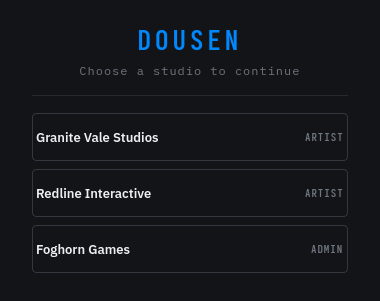
Sign in with Browser is a PKCE (S256) OAuth flow: DousenDesktop starts a one-time local callback server on an OS-assigned loopback port, opens your default browser to the control plane's authorize page, and waits for the redirect. If the tab is closed or the flow is abandoned, the listener times out after 5 minutes and the button resets — nothing stays listening in the background past that.
Dousen enforces one active device per account: a 60-second heartbeat and every token refresh carry a device_id, and a server-side conflict comes back as an HTTP 409. When that happens the previous machine's session is cleared, a tray notification reads "Session active on another device. Please log in again," and it drops back to the sign-in screen. Legitimate refreshes otherwise happen silently — you're never interrupted just because a token expired.
For admins: single-device enforcement is per account, not per machine. A shared workstation (a review station, a render box artists take turns on) will boot its previous occupant every time someone else signs in with their own credentials. Give a shared machine its own dedicated Dousen account and license seat instead of having artists sign in as themselves on it.
The main window
Opening Dousen (from the tray icon, or automatically after sign-in) shows the main window: a header, an apps bar, three tabs, and a status bar.
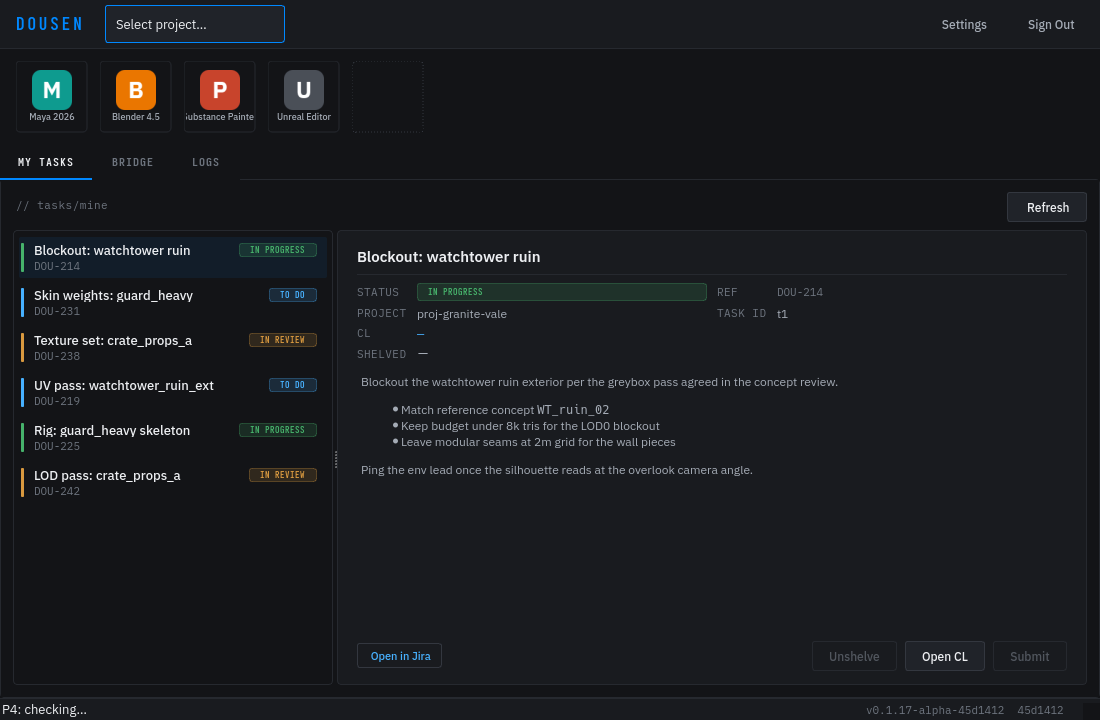
| Region | What it does |
|---|---|
| Header | Project picker, Settings button, Sign Out button. The picked project drives which conventions, validators, and pipeline settings your DCCs fetch, and is persisted to config.activeProjectId. |
| Apps bar | One launch tile per configured DCC (AppLauncherBar) plus a + tile that opens Settings on the DCC Apps tab. A tile shows a connected dot while that app is registered on the bridge; see Launching DCCs. |
| My Tasks tab | Your assigned Jira issues and a detail pane with changelist actions. See below and Jira tasks. |
| Bridge tab | Currently connected apps and the last 20 bridge events. See below and Bridge API. |
| Logs tab | The app's own log stream, with a Clear button. |
| Status bar | Perforce state on the left — P4: <stream>, P4: <client> (classic), or P4: not connected — and the app version on the right. See Perforce. |
Closing the window (the X button) just hides it to the tray — the bridge relay and background polling keep running. Use the tray menu's Quit to actually exit the process.
My Tasks
TaskListWidget owns a Jira client, a poll timer, and a split view: a task list on the left, a detail card on the right. Selecting a task loads its Jira description (rendered HTML, images included) and publishes a task.context bridge event so any DCC you launch next starts with that task already selected.
The list fetches 50 issues per page (assignee = currentUser() AND statusCategory != Done); a Load more tasks… button under the list fetches the next 50 when more exist. From the detail pane you can:
- Open in Jira — opens the issue in your browser.
- Open CL — opens a Perforce changelist against the task (disabled once one exists for it).
- Submit — opens
SubmitDialogfor a submit message, then submits the task's changelist. - Unshelve — restores the most recent shelved changelist for the task into your workspace, if one exists.
The tab polls Jira on the configured task poll interval (Settings → Connection, default 30s) and re-fetches the shelved-changelist row on every tick. If Jira becomes unreachable, an offline circuit breaker backs the poll interval off instead of retrying — and failing — every tick:
| Backoff level | Poll interval | Trigger |
|---|---|---|
| 0 (normal) | configured interval (default 30s) | Default state; restored immediately on the next successful fetch. |
| 1 | max(configured, 60s) | First network failure (no HTTP response at all — distinct from an auth failure). |
| 2 (cap) | max(configured, 5m) | A further failure while already backed off. |
A single persistent banner — "Offline — can't reach Jira. Retrying automatically." — replaces per-tick error toasts while this is active, and clears with a "Connection restored" toast on recovery. A Jira auth failure (bad email/API token) is handled differently: polling stops outright rather than backing off, since retrying with the same stale credentials only repeats the failure — fix the token in Settings → Jira to resume.
The last successfully-fetched task list is cached to disk (TaskCache) and shown immediately on launch, before the first live fetch completes — so your tasks are visible even if Jira is briefly unreachable at startup, not just after the app has been open a while.
Bridge
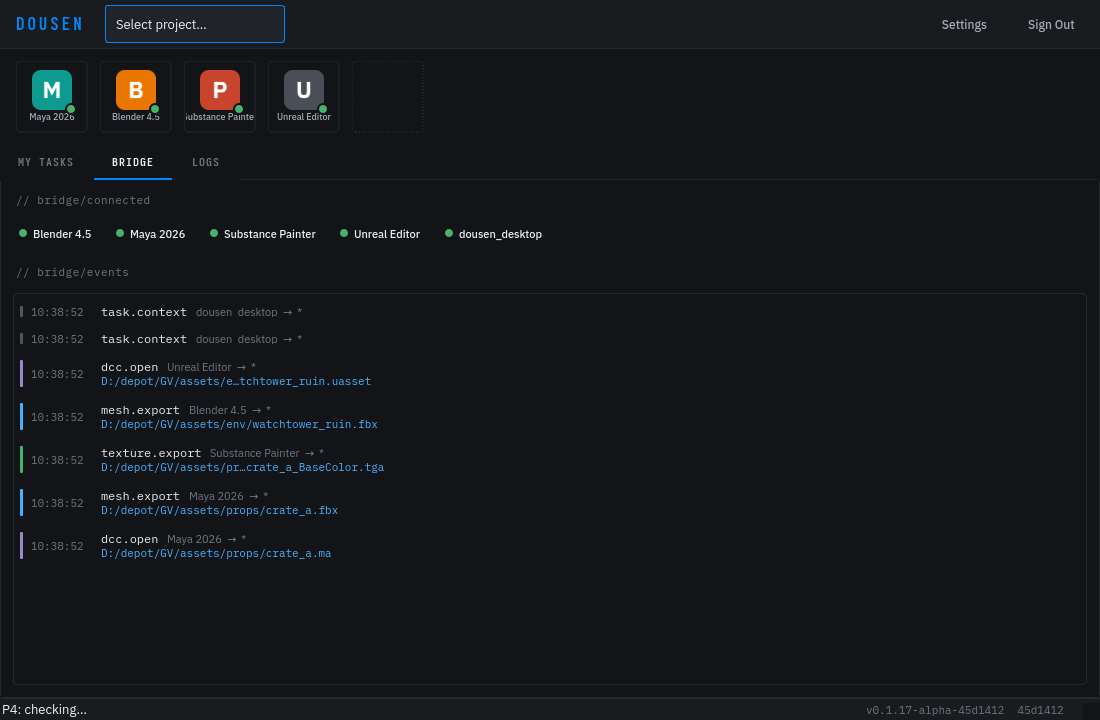
BridgeStatusWidget shows a chip per app currently registered on the bridge relay and a timeline of its last 20 routed events (timestamp, event type, source/target app, file path), refreshed every 2 seconds. It's the fastest way to confirm a publish from a DCC actually reached DousenDesktop before you go looking for the reason it didn't show up elsewhere. The relay itself — its HTTP endpoints, auth model, and event schema — is a separate reference: see Bridge API.
Logs
A plain-text view of the app's own log stream (capped at 2000 blocks), with a Clear button. This is the first place to look when a launch or a bridge event doesn't do what you expect — see the troubleshooting callout under Launching DCCs.
The tray icon
The tray context menu offers four items:
| Menu item | Behavior |
|---|---|
| Open Dousen | Shows and focuses the main window (same as clicking/double-clicking the icon). |
| Manage Account… | Opens <server>/portal/account in your browser. Shows an info toast instead if no server is configured yet. |
| Check for Updates | Runs an update check immediately; see Automatic updates. |
| Quit | Actually exits the process — closing the window only hides it. |
When one or more DCCs are registered on the bridge, the icon gains a green numeric badge — the connected-app count, capped at displaying 9+. Unreal counts toward it while its plugin is actively polling the relay (even without an explicit /bridge/register call), but never twice: if a live UE session has also registered by id, the poll-based check is skipped so it isn't double-counted. The badge re-evaluates every 3 seconds; hovering the icon shows the connected app names.
Notifications
Two kinds of bridge event surface as a desktop notification: Mesh exported/Texture exported (filename and source app) and Opening in DCC (another app, typically Unreal's content-browser "Open in DCC" entry, asked to open a file here). A 2-second batch window collapses a burst into one summary — e.g. "3 asset(s) exported, 1 DCC open request(s)" — so a big publish doesn't fire a notification per file.
Launching DCCs
Always launch DCCs from the apps bar rather than starting them directly — AppRegistry::launch() hands the process everything its Dousen addon needs to come up already wired in:
| Context field | Purpose |
|---|---|
| bridgePort | The relay port the addon polls (Settings → Connection, default 8766). |
| coreUrl | DousenCore base URL, for the addon's own REST calls (conventions, validators catalog). |
| sourceRoot | The active project's configured source root, anchoring relative/depot paths. |
| token | The current DousenCore JWT (env var DOUSEN_TOKEN), so the addon's settings/conventions fetches authenticate. |
| taskId / taskTitle / projectId / changelistId | Populated when a task is selected in My Tasks, so the panel opens already scoped to it. |
Executable paths come from Settings → DCC Apps, auto-filled by the Discover DCCs scanner or entered by hand; if a launch fails with "Executable not found", fix the path there.
The flow also runs in reverse. When another app publishes a dcc.open event — Unreal's "Open in DCC" content-browser entry is the main producer — SourceAssetTracker fetches that asset's source record from DousenCore and resolves a local path by storage type: Perforce runs p4 sync then p4 where for the client-mapped path; Google Drive/OneDrive joins the configured mount path (Settings → Connection) with the stored relative ref; local uses the last-known path as-is. It then matches the event's preferred DCC id against Settings → DCC Apps and launches it, starting the app first if it isn't already running.
If a DCC won't launch from a dcc.open event, check the Logs tab first — SourceAssetTracker logs exactly why it stopped: "Could not resolve local path for source asset" (mount path or P4 workspace not configured), "Source file not found on disk" (the resolved path doesn't exist yet — common with Drive/OneDrive sync lag), or "No registered DCC found for id" (no app in Settings → DCC Apps matches the id the event asked for). Then confirm in the Bridge tab that the event actually arrived — if it never shows up, the problem is upstream of DousenDesktop: the source app never published, or it's pointed at the wrong relay port.
Per-addon behavior once launched — panel UI, export hooks, validator wiring — is documented per DCC in DCC addons.
Settings reference
The Settings dialog (header → Settings) is entirely artist-scoped and local to the machine. Project-wide configuration — naming conventions, validator rule sets, pipeline settings YAML — lives in the web portal and is not edited here; see Settings reference for that side. Five tabs:
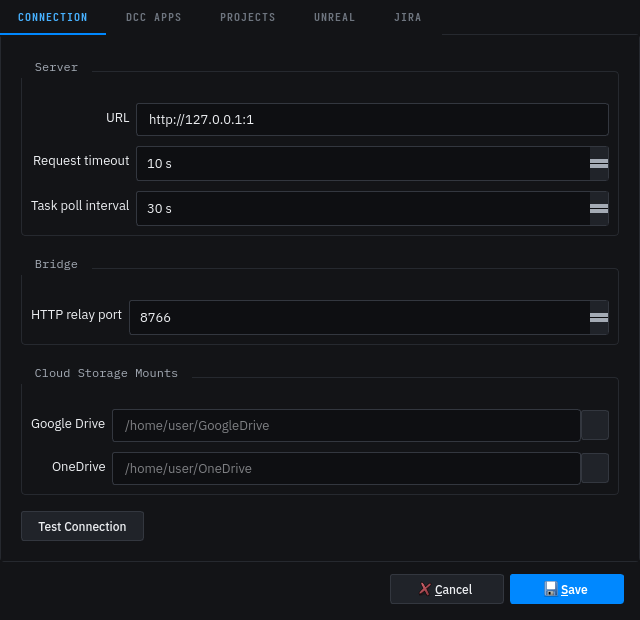
| Tab | Fields |
|---|---|
| Connection | Server URL; request timeout (1–120s, default 10s); task poll interval (5s–1h, default 30s); bridge HTTP relay port (1024–65535, default 8766); Google Drive / OneDrive mount paths; Test Connection. |
| DCC Apps | The configured DCC list (id, name, executable, icon, launch arguments, environment variables) plus a Discover DCCs scanner that adds any newly-found installs, and a Pulse connected indicator toggle for the apps-bar dots. |
| Projects | Per-project local config, not synced to the server: the .uproject override, source root, source location type (local / Perforce / Google Drive / OneDrive), and P4 server/workspace. New projects are created on DousenCore from here too. |
| Unreal | Fallback .uproject path; Install Plugin (copies the bundled DousenUE plugin into the project's Plugins/ folder and registers it in the .uproject); headless-import toggle and UnrealEditor-Cmd path for importing while the editor is closed. |
| Jira | Base URL, account email, API token (stored via TokenStore), Test Connection. See Jira tasks. |
Automatic updates
UpdateChecker polls an HTTPS JSON manifest — version, per-platform download URL/size, SHA-256, and a base64 Ed25519 signature — 5 seconds after launch (unless a check already happened within the last 4 hours) and every 4 hours after that; Check for Updates in the tray menu runs one immediately regardless of the interval.
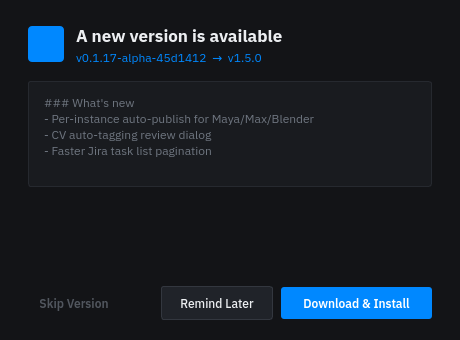
When the manifest's version is newer than the running build, UpdateDialog shows the version jump and changelog with three choices: Skip Version (remembered — that version is silently ignored on future automatic checks, though a manual check still reports it), Remind Later, or Download & Install.
A download is only trusted after two checks both pass: the SHA-256 of the downloaded bytes must match the manifest, and the manifest's Ed25519 signature over those bytes must verify against the public key compiled into the build. Either the manifest URL or the download URL being non-HTTPS, a missing SHA-256, a missing signing key in the build, or a bad signature all fail closed — the update is refused rather than installed unverified. Once verified, the installer is written to your Downloads folder and Install & Restart runs it silently (/S on Windows) or hands it to the OS's file handler on Linux/macOS, then quits the app.
Working offline
DousenDesktop is designed to survive short network interruptions without losing artist work, across two independent mechanisms:
Jira tasks
Covered above under My Tasks: the last-fetched task list is cached to disk and shown immediately on launch, and a network-level Jira outage backs off the poll interval rather than erroring on every tick.
DousenCore operations
OperationQueue persists fire-and-forget calls to DousenCore that fail because the server is unreachable, and replays them once it's back:
| Queued operation | When it's queued |
|---|---|
| upsertSourceAsset | A mesh/texture export's metadata upsert, when the live call can't reach DousenCore. |
| openChangelist | Opening a Perforce CL against a task, when the live call can't reach DousenCore. |
Both are idempotent server-side, so replaying them on reconnect is safe; a queue entry is removed only once the server gives a definitive response (success or a 4xx rejection — an operation the server has actively refused isn't retried forever). submitChangelist is deliberately not queued: it needs the server-assigned changelist id from a prior openChangelist, so it stays a live, online-only call. The queue is flushed automatically on every point where connectivity is re-established: login, a successful token refresh, and the periodic 30-second refresh-if-needed check.
Offline queuing is not indefinite. The queue records the last time it actually reached a licensed DousenCore; once that is more than 14 days in the past (mirroring DousenCore's own license grace period), new operations are refused rather than queued, and the artist must reconnect to a licensed server before pipeline actions resume. Offline mode extends the pipeline through short outages — it is not a way to run without a valid license.
Pre-configuring machines (admins)
Admins can skip per-machine onboarding with a config bundle — a small JSON file with the keys org_id, control_plane_url, and server_url. Two delivery methods:
--config-url <https-url>— pass a link on the command line (or bake it into an installer shortcut); the bundle is fetched and applied on startup, before the onboarding gate is even checked.- Drop
dousen-config.jsoninto the working directory, Downloads, home folder, or the app's config folder. DousenDesktop finds it at launch and asks the artist to confirm before applying it.
The bundle URL and the server_url inside it must be HTTPS — plain HTTP is accepted only for localhost/127.0.0.1 (a dev convenience). Applying a bundle switches the app into cloud deployment mode.