DCC addons
Dousen lives inside the tools you already use. Each supported application gets a Dousen panel, dock, or shelf that lets you publish work, run pre-export validation, set up assets from your project's naming conventions, and see Perforce file status — all without leaving the app. Six DCCs are covered here: Blender, Maya, 3ds Max, Substance Painter, Substance Designer, and Houdini. Unreal Engine is a seventh, first-class bridge participant with its own page — see Unreal Engine.
Everything on this page is artist-facing: what you click, what it does, where the files land. The rules a validator run actually checks — naming, mesh hygiene, Nanite budgets, rig limits, and so on — are documented once, DCC-agnostically, on the Asset validation page. This page covers the panel mechanics: Run Validation, Fix, Export & Notify, and how each addon is built.
What each addon can do
Four of the six — Maya, 3ds Max, Substance Painter, and Substance Designer — are literally built on the same shared PySide6 base class (DousenPanelBase), which is why their Validate and Perforce tabs look and behave identically; only the extra tabs each DCC bolts on differ. Blender uses native bpy panels instead of Qt, and Houdini has no dock at all — it's shelf tools only.
| Capability | Blender | Maya | 3ds Max | Painter | Designer | Houdini |
|---|---|---|---|---|---|---|
| UI shape | N-panel tab | Shelf + dock | Menu/toolbar + dock | Dock | Dock | Shelf only |
| Run Validation + Fix | ✓ | ✓ | ✓ | ✓ | ✓ | ✓ (no Fix buttons in the console output) |
| Export & Notify (error-gated) | ✓ | ✓ | ✓ | ✓ | ✓ | — (export tools don't gate on validation) |
| Auto-publish on save | ✓ opt-in | — | ✓ opt-in | ✓ opt-in | — | wired, no UI toggle |
| Set Up / New Asset | ✓ | ✓ | ✓ | — | — | — (infers type from file path) |
| Materials / Nanite picker | ✓ | ✓ | ✓ | ✓ | ✓ | ✓ (single-slot only) |
| Perforce ops (checkout/sync/revert) | ✓ | ✓ | ✓ | ✓ | ✓ | ✓ |
| Send to Painter | ✓ | ✓ | ✓ | — | — | ✓ |
| Send to Unreal | via Export & Notify* | via Export & Notify* | via Export & Notify* | ✓ button | ✓ buttons | ✓ shelf tool |
| Receives bridge events (mesh.export) | — | — | — | ✓ | ✓ (stashed only) | — |
| Per-task context (live) | ✓ | ✓ | ✓ | ✓ | ✓ | ✓ |
* Blender, Maya, and 3ds Max have no dedicated "Send to Unreal" button — send_to_unreal() exists as a Python function for studio scripts to call, but the panel's actual path to Unreal is Export & Notify: it publishes the same mesh.export/animation.export event, which FAssetSyncManager polls and imports automatically. Substance Painter, Substance Designer, and Houdini expose an explicit button/shelf tool because their export flow doesn't otherwise map to a single mesh file the way a DCC-native scene save does.
Auto-publish-on-save is wired but not reachable from the UI yet in Houdini: it registers a real save-triggered callback (fires on hou.hipFile.AfterSave and checks an internal _auto_publish flag), but the addon has no shelf tool that ever sets it. Until one ships, treat Houdini auto-publish as off in practice — a studio startup script could flip the flag directly in the meantime, but there's no supported way to do it from inside the app. Blender, 3ds Max, and Substance Painter all expose an opt-in checkbox (3ds Max's is on the panel's Tools tab and persists with the scene via appData key 1001 on the root node).
Installing and enabling the addons
There is normally no manual install. The old “install the addon by hand” flow no longer applies — DousenDesktop launches each application with the Dousen addon injected automatically (a bootstrap script per DCC sets its Python path and registers the addon before the UI comes up).
To get the in-app panel, you only need to:
- Open Settings → DCC Apps and confirm the executable path for each application. Installed DCCs are auto-discovered, so this is usually already filled in.
- Launch the application from DousenDesktop's launcher. The Dousen panel, shelf, or menu appears inside it.
On Windows, the installer bundles the addons, so nothing extra is downloaded.
The addon only appears when the DCC is launched from DousenDesktop — a desktop shortcut starts the plain application. If the panel is missing even when launched correctly, the most common cause is a sys.path collision: an older addon build inserted the Dousen Python path at the front of sys.path, which could shadow the DCC's own standard-library modules and fail the import silently (no error dialog, no console message — the app just starts with nothing extra). This was fixed for Blender, Maya, and 3ds Max by appending instead of inserting. If a DCC still loads with no Dousen panel and no error printed, check its console/script-editor output for import errors and see Troubleshooting.
How the addons talk to Dousen
DousenDesktop runs a small local relay (the bridge) on your own machine at 127.0.0.1 port 8766. Addons publish events to the bridge and poll it for incoming events about twice a second. This is the channel that lets one application hand work to another — for example, sending a mesh from Maya to Substance Painter.
The bridge is plain HTTP on port 8766 only. There is no separate service port to open, and every request is authenticated with a per-session token, so other programs on your machine can't read or inject events.
Bridge event types
Almost everything the addons do maps to one of six event types:
| Event | Meaning |
|---|---|
| mesh.export | A published mesh / FBX (or Alembic, for Houdini). |
| texture.export | Published textures or a .sbsar package. |
| animation.export | A published animation clip. |
| scene.export | An auto-publish triggered when you save the scene. |
| dcc.open | A request to open a file in a specific DCC. |
| task.context | The active Jira task and changelist, pushed to running DCCs. |
Each running application announces itself to the bridge when it starts (register) and withdraws when it closes (deregister). That presence handshake is separate from the events above — it's how features like Send to Unreal know which DCCs are currently open, and how a DCC's shelf only shows Send to Painter when Substance Painter is actually registered.
Studio tools can join the bridge exactly like the built-in addons — the full protocol, payload shapes, and a Python example are on the Bridge API page.
Per-task context
When you select a task in DousenDesktop, the active Jira key and changelist are pushed to every running DCC as a task.context event. From then on, everything you publish is tagged with the right task and linked to the right Perforce changelist — you don't have to label exports by hand.
When DousenDesktop launches a DCC while a task is selected, the same context is also passed to the application as environment variables, so the addon picks it up immediately on startup.
Auto-tagging on export (preview)
After a mesh export lands on the bridge, DousenDesktop can run a local, CPU-only computer-vision pass over it — geometry heuristics (poly tier, whether it has UVs, whether it's skinned) plus an optional bundled classifier that guesses an object class and style hint. This runs in DousenDesktop itself, not inside the DCC, so it applies the same way regardless of which addon published the mesh. A review dialog lets you accept or edit the suggested tags before they're stamped on the source asset record. This feature is still rolling out (DOU-219 epic) — treat any auto-tag as a suggestion, not a fact, until it's had more studio mileage.
Blender
The Blender addon adds a Dousen tab to the View3D sidebar (N-panel), built from native bpy panels rather than Qt. The top-level panel holds the always-visible actions; three collapsible sub-panels hold the rest.
| Where | Button | What it does |
|---|---|---|
| Dousen panel | Auto-publish on Save | Toggle, stored as a window-manager property — resets to off every time Blender restarts. While on, every save exports the whole scene as FBX and publishes a classified mesh.export or animation.export. |
| Dousen panel | Export Scene & Notify | Publishes a bare scene.export event carrying the current .blend path — no FBX export, no validation gate. Distinct from Export & Notify below. |
| Dousen panel | Export with Tags | Opens a dialog to pick asset type/taxonomy without moving the file, then exports FBX and publishes with those tags applied. Useful for tagging an asset that's already sitting in the right place. |
| Dousen panel | Send to Substance Painter | Only shown once Painter is registered on the bridge. Exports the selection as FBX and publishes mesh.export targeted at substance_painter. |
| Validation sub-panel | Run Validation | Runs the shared validator engine, scoped by persisted convention tags (or the saved path if untagged). Lists results by category with per-rule Fix buttons where a validator supplies one. |
| Validation sub-panel | Export & Notify | Enabled once validation has run with no errors. Blocks with "Fix N validation error(s)" if any remain, confirms first if only warnings remain, then whole-scene FBX-exports and publishes the classified UE import contract. |
| New Asset sub-panel | Set Up Asset | Walks your project's naming conventions (asset type, cascading taxonomy, orthogonal dimensions like variant/LOD, and an optional rig to link for animation assets), then save_as_mainfiles the .blend to the resolved source path and p4 adds it to the active task's changelist. |
| Materials sub-panel | Edit Material Slot / Auto-Fill Textures / Refresh Material Catalog | Assigns a project material-catalog entry per mesh material slot, guesses texture bindings from filenames, and persists the assignment — see Materials & Nanite gating. |
| File Status (P4) sub-panel | Refresh Lock Status / Check Out (p4 edit) / Sync & Reload / Revert Checkout | Live Perforce lock state for the current .blend — see Perforce operations. |
Convention tags persist as a JSON scene ID property (dousen_convention_tags) and are stamped as custom properties on every mesh, armature, and empty object before FBX export, which Unreal's importer reads as FBX user-defined properties.
Whole-scene FBX export (not selection-only) is deliberate: a skeletal mesh needs its armature along for the ride, and the export classifier looks at whether the scene actually has an armature/actions before deciding mesh.export vs animation.export.
Maya
Maya gets two Dousen surfaces that both auto-load from userSetup.py: a Dousen shelf of native cmds buttons, and a dockable PySide6 panel that opens automatically on startup (and can be reopened from the shelf). Both drive the same underlying export/validation/P4 functions, so they never disagree — the shelf's Validate and Asset buttons are just lighter-weight windows for the same flows the dock's tabs offer.
| Surface | Item | What it does |
|---|---|---|
| Shelf | Dousen | Opens/raises the dockable panel. |
| Shelf | Dousen Validate | Opens a standalone, non-dockable cmds window: Run Validation, per-rule Fix, a P4 status frame, and Export & Notify — separate from the dock's Validate tab, same underlying validation call. |
| Shelf | Dousen Asset | Opens a standalone conventions-driven New Asset window (cascading option-menus), same resolve-and-save logic as the dock's New Asset tab. |
| Shelf | Send to Painter | Only added to the shelf at startup if Painter is already registered on the bridge. Exports the selection as FBX and publishes mesh.export targeted at Painter. |
| Dock — Validate tab | Run Validation / Export & Notify | Same gate as every DousenPanelBase DCC: errors block, warnings confirm. |
| Dock — Perforce tab | Check Out / Sync && Reload / Revert / Refresh | See Perforce operations. |
| Dock — New Asset tab | Load Conventions / Set Up Asset | p4 adds the new .ma to the active task's changelist once saved. |
| Dock — Materials tab | (catalog picker) | Shared MaterialPickerWidget — see Materials & Nanite gating. |
| Dock — Tools tab | Send to Painter | Always visible here (unlike the shelf button); enabled/disabled live based on whether Painter is currently registered. |
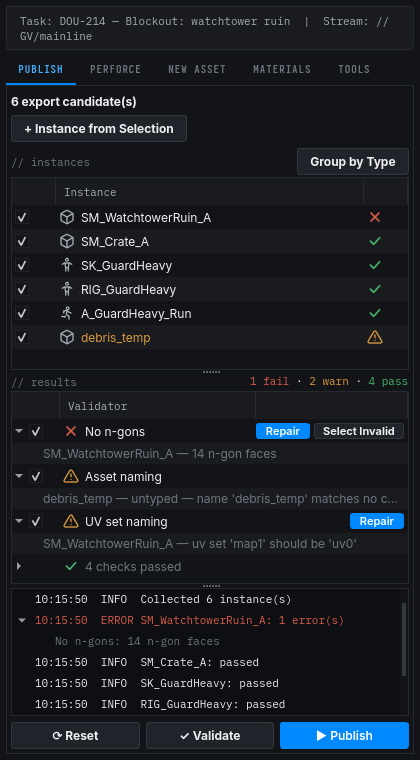
FBX export goes through MEL's FBXExport* commands with project presets from export_presets.maya applied first (file version, smoothing groups, tangents, triangulation), and FBXExportShowUI forced off so a profile with FBX autoload disabled can't hang the export on Maya's native "load plugin?" prompt. Convention tags persist as one fileInfo entry per tag — Maya's fileInfo mangles quoted strings, so a JSON blob isn't used — and are separately stamped as string attributes on mesh transforms before export. The materials picker persists as a base64-encoded JSON blob in fileInfo (base64 because the assignment is nested, not the flat shape tags get away with).
Maya has no auto-publish-on-save — export is always a deliberate action, unlike Blender or Substance Painter.
3ds Max
Like Maya, 3ds Max gets both a native menu/toolbar with lightweight dialogs and a dockable PySide6 panel (via qtmax) built on the same DousenPanelBase family — four macroscripts under the "Dousen" category, auto-registered from a script in Max's scripts/startup/ folder.
| Macroscript | Opens | What it does |
|---|---|---|
| DousenPanel | PySide6/qtmax dock | Validate, Perforce, New Asset, and Materials tabs — identical mechanics to Maya's dock. |
| DousenValidate | "Validate && Export" WinForms dialog | Standalone dotNet dialog (pymxs's dotNet bridge): Run Validation, a results list box, Export && Notify, and Check Out Source / Sync & Reload / Revert Checkout / Refresh Lock Status buttons. |
| DousenSetupAsset | "New Asset" WinForms dialog | Conventions-driven asset setup, saving a correctly-named .max and adding it to Perforce. |
| DousenSendToPainter | — | Exports the selection as FBX and publishes it targeted at Substance Painter. |
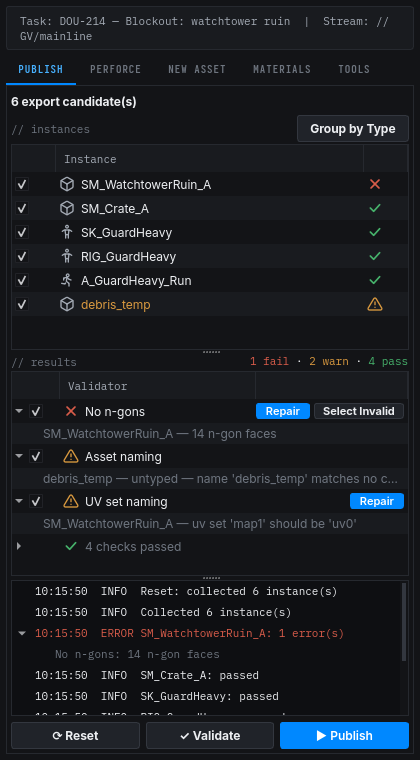
Convention tags are stored as a custom file property (rt.fileProperties), and separately appended to every exported node's user-property buffer as dousen_<key>=<value> lines — 3ds Max collapses all of a node's user-defined properties into a single FBX tag (UDP3DSMAX), so the addon writes one block of lines rather than discrete FBX properties the way Blender/Maya do. The dock's Materials tab persists its catalog assignment as JSON in its own file property, same shared picker as the other DCCs.
The Dousen menu only appears under the Help menu's neighbor on 3ds Max 2025 and later (registered via cuiRegisterMenus); 2024 and earlier get a floating toolbar instead (legacy toolbar API) — both expose the same four macroscripts. Auto-publish-on-save is opt-in via the Publish mesh.export on save checkbox on the panel's Tools tab (a filePostSave callback checks appData key 1001 on the root node, which the checkbox sets/clears; the setting persists with the scene).
Substance Painter
The Substance Painter addon is a DousenPanelBase PySide6 dock, auto-loaded from a thin shim in SUBSTANCE_PAINTER_PLUGINS_PATH/startup that bootstraps sys.path and delegates to the real addon package. It shares Validate and Perforce tabs with Maya/3ds Max/Designer, plus its own Export and Tools tabs.
| Where | Button | What it does |
|---|---|---|
| Validate tab | Run Validation / Validated Export | Same shared gate; the export button is labeled "Validated Export" here rather than "Export & Notify." |
| Export tab | Export Textures | Runs Painter's own texture export. On ExportTexturesEnded, one texture.export event is published per output file; the console warns if an exported format isn't in the project's texture.allowed_formats setting. |
| Export tab | Send to Unreal | Two paths depending on state: if no texture set has a catalog material picked, exports every texture set plus the source mesh as the legacy bundle; otherwise (send_to_unreal_pipeline) publishes a single texture.export carrying the full UE import contract with the picked material_assignment. |
| Export tab | Load Materials / Texture Set Materials / Material Details | The materials picker, embedded here rather than a separate tab — see Materials & Nanite gating. |
| Tools tab | Publish scene.export on save | Checkbox. When checked, saving the project publishes scene.export carrying the source mesh's path (not the .spp project file, since Painter has no mesh of its own to export). |
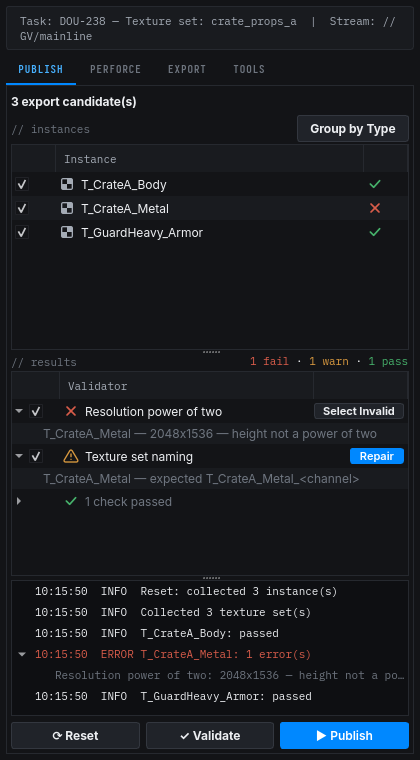
A mesh.export event targeted at Painter (target_app == "substance_painter") either rebakes the currently open project's mesh or creates a new project from it, so a Maya/3ds Max/Houdini artist can hand geometry straight to texturing over the bridge. Convention tags and the materials assignment both live in Painter's own project metadata store (substance_painter.project.Metadata("Dousen")) — tags for validation scoping only, since Painter never produces an FBX to stamp them into.
Substance Designer
The Substance Designer addon is also a DousenPanelBase PySide6 dock, auto-loaded via SD_PLUGINS_PATH's initializeSDPlugin()/uninitializeSDPlugin() hooks. It has Validate, Perforce, Materials, and Export tabs.
| Where | Button | What it does |
|---|---|---|
| Export tab | Export Baked Textures | Walks every comp graph's output nodes specifically (not graph-level output properties), bakes each via resource.compute(), and exports — TGA by default, or whatever export_presets.substance_designer.format specifies. |
| Export tab | Export .sbsar | A separate whole-package export via SDSBSARExporter, independent of the baked-texture export. |
| Export tab | Send to Unreal (TGA + FBX) / Send .sbsar to Unreal | Same two-path shape as Painter — a bundled multi-event send, and a single-event pipeline variant carrying the full UE import contract. |
| Materials tab | (catalog picker) | Shared MaterialPickerWidget — see Materials & Nanite gating. |
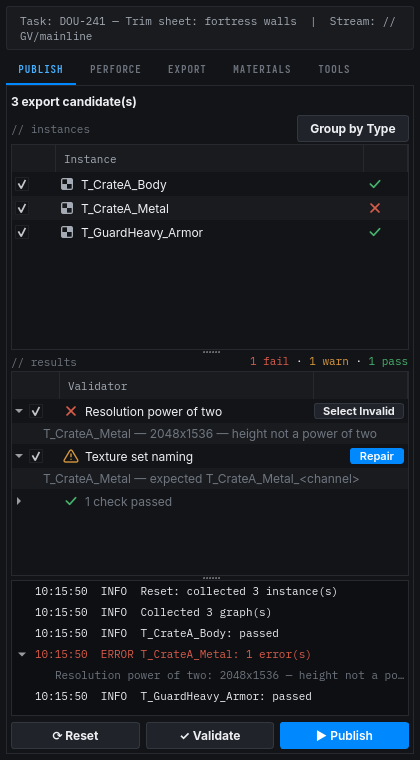
A mesh.export event targeted at Designer is stashed (the received path is stored for the artist to reference from the current baking graph) rather than automatically wired into any node. Designer has no native scene metadata store, so both convention tags and the materials assignment are persisted as JSON sidecar files next to the .sbs package — <package>.dousen-tags.json and <package>.dousen-material.json — rather than embedded in the package itself.
Unlike Painter, Designer has no auto-publish-on-save — the flag exists as a module-level variable but nothing in the addon ever sets or checks it again. Publishing is always a manual Export action.
Houdini
The Houdini addon is shelf-tool based, with no dock at all — auto-loaded from a 456.py script on HOUDINI_PATH, which Houdini runs on every .hip load; the addon's own initialize() is idempotent (an internal flag skips re-init on repeat loads). All eleven tools live on one Dousen shelf tab.
| Shelf tool | What it does |
|---|---|
| Dousen: Export HDA | Saves the selected node's HDA definition and publishes it as mesh.export. |
| Dousen: Export VAT | Renders a Vertex Animation Texture ROP network and publishes the resulting position/normal/rotation maps and mesh as a bundle. |
| Dousen: Export Alembic | Builds a temporary /out ROP with export_presets.houdini.* settings, exports the selected node as .abc, and publishes mesh.export. |
| Dousen: Validate | Runs the shared validator engine against the current scene and prints results to the console — there's no results tree here, unlike the panel DCCs. |
| Dousen: Material Setup | Opens a PySide2 dialog (Houdini's Qt binding) for the catalog picker, persisted on the /obj node's user data. Single-slot only (mesh_slot="") — unlike the multi-slot pickers in the other five DCCs, Houdini assigns one material for the whole asset. |
| Dousen: Send to Painter | Only added to the shelf if Painter is already registered on the bridge at load time. |
| Dousen: Send to Unreal | Literally the same function as Export VAT — there's no separate "send" step for Houdini beyond exporting the VAT bundle. |
| Dousen: File Status (P4) / Check Out / Sync & Reload / Revert Checkout | Same shared Perforce ops as the other DCCs, with hou.ui.displayMessage confirmation dialogs — see Perforce operations. |
Houdini has no reliable FBX user-property embedding path, so convention tags are stored on the /obj node's user data (dousen_convention_tags) purely for validation scoping. There's no Set Up Asset UI for Houdini yet, so an untagged scene falls back to inferring its asset type from the saved file path.
An auto-publish-on-save hook exists (fires on hou.hipFile.AfterSave), but there's no shelf tool or dialog to turn it on — treat Houdini as manual-publish-only unless a studio startup script sets the internal flag directly.
Materials & Nanite gating
All six addons expose the same catalog-driven materials picker, backed by one shared, UI-toolkit-agnostic module (dousen.addons._material_picker) that turns the project's material catalog into combo-box choices, declared texture slots/params, and a guessed texture-slot auto-fill. Maya, 3ds Max, and Substance Designer share a literal Qt widget (MaterialPickerWidget) for the UI; Blender, Substance Painter, and Houdini build their own widget around the same primitives. Whichever material a mesh slot / texture set resolves to, its allow Nanite flag is what the Nanite/NonNanite validator category split reads from — see the Nanite / NonNanite gate and how Unreal applies the same flag on import.
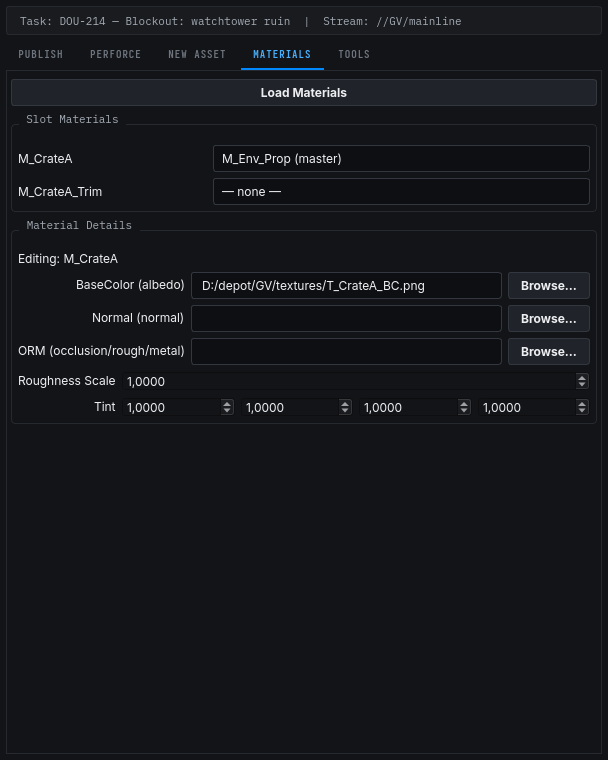
| DCC | Multi-slot? | Persisted where |
|---|---|---|
| Blender | Yes | JSON scene ID property (dousen_material_assignment). |
| Maya | Yes | Base64-encoded JSON in a fileInfo key (nested structure, so plain fileInfo quote-mangling is avoided). |
| 3ds Max | Yes | JSON in a custom file property. |
| Substance Painter | Yes (one per texture set) | Painter's own project metadata store, namespace Dousen. |
| Substance Designer | Yes | JSON sidecar file, <package>.dousen-material.json. |
| Houdini | No — single assignment for the whole asset | /obj node user data. |
Perforce operations inside each DCC
Every addon runs the same shared _p4_ops module underneath — async lock polling, a pre-export lock check, and checkout/sync/revert/add wrappers around p4 (P4Python with a CLI fallback). Button wording differs slightly between the native dialogs (Maya's shelf window, 3ds Max's WinForms dialog) and the shared DousenPanelBase Perforce tab, but they call the exact same functions:
| Operation | DousenPanelBase tab label | Native-dialog label (Maya/3ds Max) |
|---|---|---|
| Open for edit | Check Out | Check Out Source (p4 edit) |
| Sync + reload the scene | Sync && Reload | Sync & Reload (not at latest) |
| Discard local checkout | Revert | Revert Checkout (p4 revert) |
| Re-poll lock status | Refresh | Refresh Lock Status |
A pre-export lock check also runs automatically as part of every validated export — if a file the export needs to write is locked by someone else, the export is refused before anything happens. Full command reference, stream detection, and changelist association live on the Perforce page.
Validation before export
Blender, Maya, 3ds Max, Substance Painter, and Substance Designer all run the exact same gated flow — one shared engine underneath, not five reimplementations:
- Errors block the export until they're fixed.
- Warnings prompt you to continue or cancel.
- Dousen also checks that the source file isn't locked by someone else in Perforce (see Perforce operations above).
- The active rule set is resolved from your project's compiled naming conventions for the asset's specific type and taxonomy path — an untagged asset only runs the universal (naming) checks, not the full type-specific catalog.
- When an asset has a materials-picker assignment (see Materials & Nanite gating above), its Nanite flag decides whether the Nanite or NonNanite validator category applies — an asset with no assignment yet runs the Nanite-safe set, matching the checks every scene has always run.
Once the checks pass, the asset is published to the bridge and tagged with your active task.
Houdini is the exception: Dousen: Validate runs the same validator engine and prints results to the console, but it isn't wired into Export HDA, Export VAT, or Export Alembic — those three export unconditionally. Run Validate yourself before exporting if you want the same safety net the other five DCCs enforce automatically.
For the full rule reference, how admins configure it, and a worked troubleshooting example, see the Asset validation page.