Jira tasks
Dousen doesn't store your tasks. Jira Cloud is the single source of truth: the tasks table was dropped from DousenCore's database once Jira took over, and DousenDesktop reads issues straight from Jira on every fetch rather than caching a copy server-side. Two independent Jira connections exist side by side, and this page covers both:
- Your personal connection — your own email + API token, entered in Settings → Jira — used only to read issues into the My Tasks panel. It never touches DousenCore.
- A project-level connection — base URL, project key, and email, configured by an admin on the project's page in the web portal — used only by DousenCore itself, server-side, to push the issue forward when a changelist is submitted. See Transitioning the issue on submit.
Connecting your Jira account
Open Settings → Jira and fill in three fields:
| Field | Value |
|---|---|
| Base URL | Your Jira Cloud site, e.g. https://yourstudio.atlassian.net. |
| The address you sign in to Jira with. | |
| API token | A personal token created in your Atlassian account (id.atlassian.com → Security → API tokens). |
Test Connection sends GET /rest/api/3/myself with your two credentials over HTTP Basic auth and reports connected or failed based on whether Jira answers with 200 — nothing else is checked or saved by the test itself.
The first-run onboarding wizard asks for the same three fields before you ever see the main window, so most artists only fill this in once and never open the Settings tab again.
Your token is stored locally, separate from your Dousen login session, and is never sent to the Dousen server — every Jira request goes straight from your machine to Jira Cloud over Basic auth. On Windows it's kept in the OS Credential Store. Elsewhere it's XOR-obfuscated with a random per-install key (itself written to a sibling file with owner-only permissions) — enough to stop a casual look at the config file, not real encryption; an OS-keychain integration for Linux/macOS (libsecret / Keychain) is on the backlog.
Only the Jira issue key itself (for example DOU-142) ever travels to DousenCore, and only once you link a task to a changelist. Your token stays on your machine.
The My Tasks panel
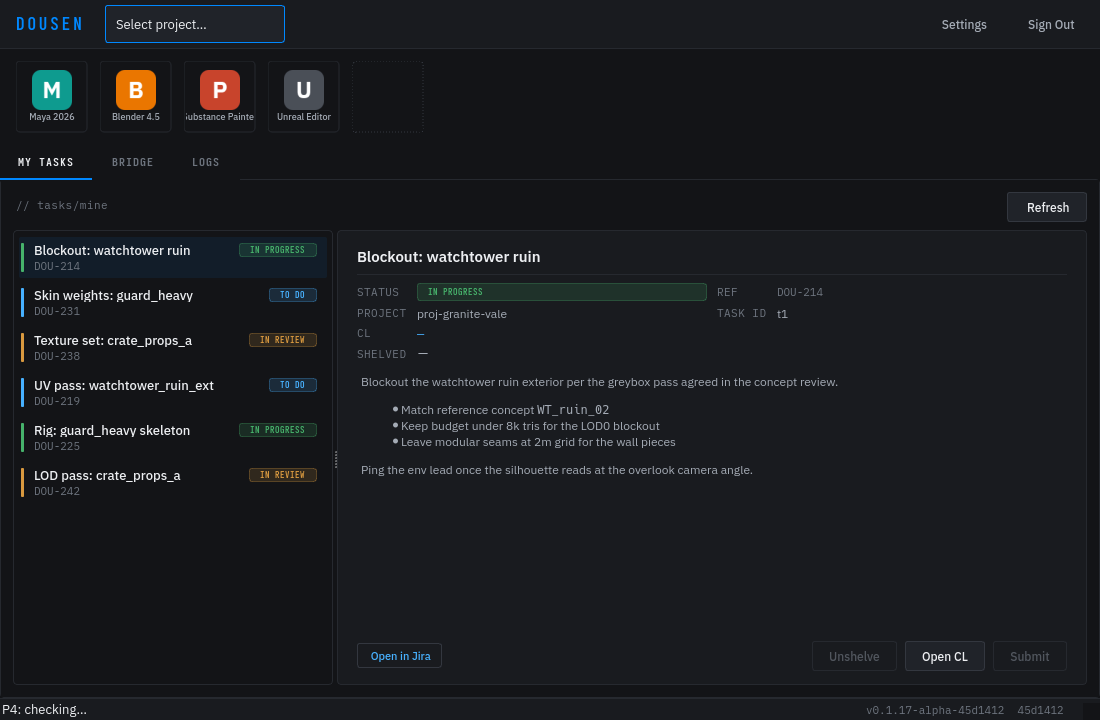
My Tasks shows the issues assigned to you that aren't yet Done. It runs one fixed JQL query:
TEXTassignee=currentUser() AND statusCategory != Done
| Call | What it fetches |
|---|---|
| GET /rest/api/3/search/jql | The task list. Query params: jql (above), fields=summary,status,priority,description,assignee, expand=renderedFields, maxResults=50, startAt. |
| GET /rest/api/3/issue/{key} | Full detail for one issue, fetched the moment you select it in the list. Same fields and expand. |
Results page 50 issues at a time. A Load more tasks button appears under the list whenever Jira's response says more remain (startAt + returned < total), and fetches the next page without disturbing what's already shown. The whole list is polled every 30 seconds by default — configurable under Settings → Connection → Task poll interval, anywhere from 5 seconds to an hour — so newly assigned work shows up on its own.
Selecting a task loads its detail on the right: status badge, Jira key, project, task id, a linked-changelist indicator, a shelved-changelist indicator (see Shelving), and the description rendered as real HTML — headings, lists, and inline images — from Jira's renderedFields.description, not a plain-text fallback. Images referenced in the description (Jira's /secure/attachment/... URLs) are fetched with the same Basic-auth credentials, cached in memory for the session, and scaled down to fit the pane if they're wider than it.
| Button | Action |
|---|---|
| Open in Jira | Opens the issue in your system browser. |
| Open CL | Opens a Perforce changelist tied to this issue. See Perforce. |
| Submit | Submits the linked changelist. |
| Unshelve | Unshelves the most recently shelved changelist for this task — still a preview feature. See Shelving. |
Staying usable through outages
The panel is built to keep showing something useful when Jira is slow, unreachable, or rejects your credentials:
- Cold start. On launch, the last successfully-fetched task list loads from a local on-disk cache immediately — before the first live fetch even completes — so the list isn't empty while Jira is loading or unreachable.
- Network outage. If a poll gets no HTTP response at all (DNS failure, timeout, connection refused), Dousen backs the poll interval off in steps — your configured interval, then 60 seconds, then 5 minutes, capped — and shows one persistent "Offline" banner instead of an error toast on every failed tick. The first successful fetch afterward restores your configured interval and clears the banner.
- Bad credentials. A 401/403 from Jira is treated differently from a network error: retrying with the same token can never succeed, so polling stops outright and a banner tells you to fix your email or token in Settings. It resumes automatically the moment you save valid credentials there.
Details in Troubleshooting.
Linking a task to a Perforce changelist
Selecting a task and clicking Open CL opens a Perforce changelist and links it to that Jira issue key (for example DOU-142) inside DousenCore — the changelist row is keyed by the plain issue-key string, not a foreign key into any task table (there is none). From that point, exports published while the task stays selected carry both the task and the changelist, via the task.context bridge event every DCC addon subscribes to — see DCC addons.
- Pick your task in the My Tasks panel.
- Click Open CL.
- Work and publish as normal — the DCC addons pick up the active task and changelist automatically.
- Click Submit when the work is ready. See Perforce for exactly what happens to the changelist.
The Open CL / Submit button states are re-derived from DousenCore, which keys changelists by issue key — so a task with an open changelist keeps Submit enabled across task-list refreshes, and Open CL is idempotent (it returns the existing changelist rather than opening a duplicate).
Transitioning the issue on submit
Submitting the linked changelist can automatically move the Jira issue forward — DousenDesktop itself never calls Jira for this; DousenCore does, server-side, using its own project-level Jira credentials. Two independent pieces of admin setup are required:
- A project-level Jira connection — separate from any artist's personal Settings → Jira credentials — configured on the project's page in the web portal's Jira Configuration section: Base URL, Project key, and Email.
- The
jira.on_submit_transitionpipeline setting, naming the transition to run:
YAMLjira:
  on_submit_transition: "In Review"
The portal's project page currently exposes Base URL, Project key, and Email for this connection, but not an API-token field — there's no form control yet to set or rotate it. Until one is added, the project's Jira API token has to be set directly at the database level for the transition to actually reach Jira; the pipeline setting alone isn't enough to make this work end to end.
On a successful submit, DousenCore looks up the target transition by name (GET /rest/api/3/issue/{key}/transitions, matched case-insensitively) and fires it (POST /rest/api/3/issue/{key}/transitions) using the project's Jira credentials — not yours. A name that doesn't match any available transition, or any other failure, is logged server-side and the submit still succeeds; it just doesn't move the issue.
This value is the Jira workflow transition name, not the destination status name — they can differ. The button an artist clicks in Jira might read "Send to Review" even though it lands the issue in a status called "In Review". Check Project settings → Workflow in Jira for your project's real transition names.
The desktop app only supplies this by including your active project in the submit request — pick one from the project selector before submitting, or the server has no project to resolve the setting from and silently skips the transition.
Inbound Jira webhook
DousenCore also accepts webhook events from Jira at POST /webhooks/jira, verified with an HMAC-SHA256 signature over the raw body:
| Condition | Response |
|---|---|
Valid X-Hub-Signature-256 against DOUSEN_WEBHOOK_SECRET | 200 OK — event parsed and logged. |
| Missing or mismatched signature | 401 Unauthorized. |
| Body doesn't parse as a Jira webhook payload | 400 Bad Request. |
DOUSEN_WEBHOOK_SECRET unset | 503 Service Unavailable — fails closed, unless DOUSEN_ALLOW_INSECURE_WEBHOOK=true (dev only). |
This endpoint is the foundation for full two-way sync. Today it verifies the signature, parses the event, and logs it — it does not update any changelist or task state on its own. Until it does, drive status changes from the submit side (jira.on_submit_transition, above) rather than depending on the webhook to react to changes made in Jira.