Quick start
This guide takes a studio from zero to a working Dousen pipeline: an account, a configured project, DousenDesktop on each artist machine, and the optional Unreal plugin. Getting the server and one artist machine running takes about 15–30 minutes; rolling out to the rest of the team from there is mostly copy-paste (install DousenDesktop, sign in, run the wizard).
Cloud self-serve signup is currently closed during a free studio beta — accounts are provisioned manually. Studios request access rather than filling in a signup form. See Early access.
What to decide before you start
The wizard will ask for these; deciding them up front saves a round trip back to the portal mid-setup.
- Jira project key (e.g.
DOU) — set on the project in the portal. It's what shows up in changelist descriptions and drives the My Tasks query. - Perforce depot path per project (e.g.
//depot/MyGame/...) — each artist types this into the onboarding wizard's Workspace page by hand, so share it with the team before rollout. See Perforce. - Which DCCs the studio actually uses — the wizard auto-discovers and pre-checks everything it finds; knowing which ones to leave ticked (and which to add manually) speeds up the DCC Applications step.
- Cloud or self-hosted, and if self-hosted, who owns the license token and the server's reverse proxy / TLS.
How artists will sign in
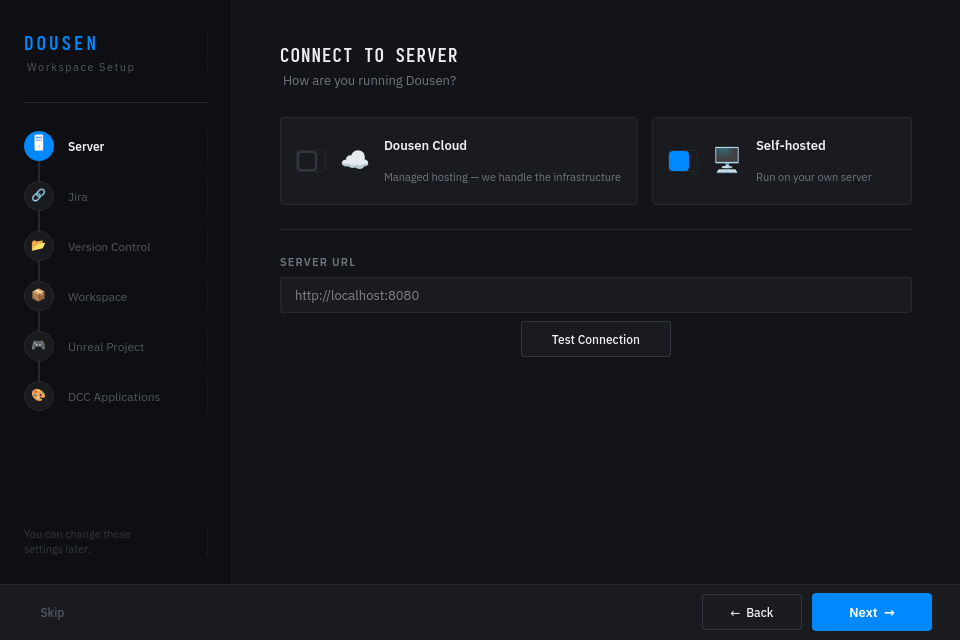
The wizard's Server page is the one field every artist fills in identically, so it's worth deciding which of these applies to your studio before rollout:
| Mode | Studio type | How it works |
|---|---|---|
| Local password | Self-hosted | The password is checked against the DousenCore instance itself. An admin creates the user directly in the portal (POST /portal/users) — there's no invite flow. |
| External directory | Self-hosted, DOUSEN_AUTH_MODE=ldap | Authentication is delegated to the studio's LDAP/Active Directory; the user is auto-provisioned in Dousen on first successful login, with role decided by group membership. |
| Cloud SSO | Cloud | No instance password at all — the user arrives through a secure single-sign-on exchange from DousenControl. From DousenDesktop, this can be a plain password against the cloud account or the Sign in with Browser button (OAuth, PKCE). An account in more than one studio sees a Choose Studio picker first. |
Full reference, including sessions/tokens and how each plane creates users: User & auth management.
Setup
-
Get an account. ~5–15 minutes.
Cloud: request access, and a studio instance is provisioned for you. Self-hosted: run the server with Docker Compose — the full walkthrough is on the Self-hosted install page. Either way, the server listens on port 8080.
Gotcha: a self-hosted server refuses to start if
DOUSEN_JWT_SECRETis under 32 characters, and it binds to loopback (127.0.0.1:8080) by default — if artists can't reach it, that's the first thing to check (front it with a reverse proxy, or setDOUSEN_BIND_HOST=0.0.0.0for a trusted LAN). -
Configure the project in the web admin portal. ~10 minutes for the first project.
Open
http://<server>:8080/portal/and sign in. From there you can create users, create a project and set its Jira project key and depot path, edit the naming-convention, validator, and pipeline-settings YAML, and review validation history. Connect Jira by adding the/webhooks/jirawebhook in your Jira project. See Settings reference and Naming conventions.Gotcha: if Jira status changes never make it back to Dousen, check the webhook URL ends in
/webhooks/jira, is reachable from Jira Cloud over public HTTPS, and thatDOUSEN_WEBHOOK_SECRETmatches what's configured on the Jira side — a mismatch fails silently rather than erroring loudly. -
Install DousenDesktop on each artist machine. ~2 minutes per machine.
The Windows installer (NSIS) bundles the app, the DCC addons, and the Unreal plugin. Auto-update is built in, so artists stay current automatically. An admin can pre-fill the wizard's Server step with a config bundle (
--config-urlor a droppeddousen-config.jsoncarryingorg_id,control_plane_url, andserver_url), so artists don't have to type server details by hand — the rest of the wizard (Jira, VCS, DCC apps) still runs normally. See The desktop app. -
Run the first-launch onboarding wizard. ~5–10 minutes.
On first run, DousenDesktop opens a full-window setup with six steps after a welcome screen. Sign-in can be browser-based (secure OAuth) or direct.
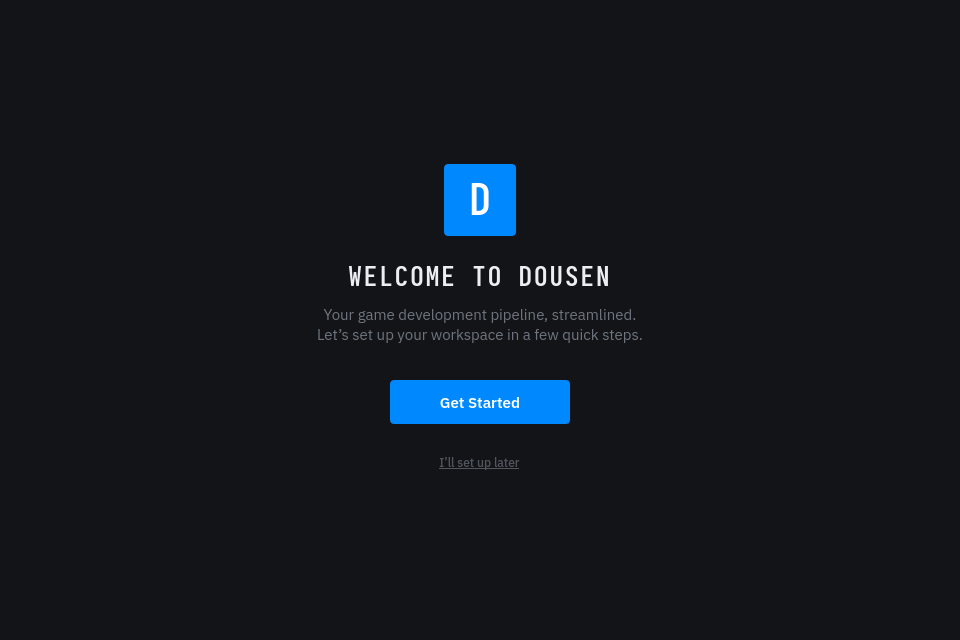
The wizard opens here before the six configuration steps begin. Nothing here is a hard gate — every step has a Skip button, and none of the fields block you from moving on. Fill in what you have and finish the rest later from Settings.
Step Captures Skippable? Server Dousen Cloud vs. self-hosted, and the server/control-plane URL. Yes Jira Jira base URL, your email, and API token; Test Connection verifies them. Yes Version Control Perforce or Git. Choosing Git skips Workspace entirely. Yes Workspace (Perforce only) depot path, local root, and workspace name — checks for an existing mapping or creates one. Yes Unreal Project Path to a .uproject; checks for an existingPlugins/DousenUEfolder.Yes DCC Applications Auto-discovered Blender/Maya/3ds Max/Houdini/Substance Painter/Substance Designer installs, pre-checked. Yes - Jira gotcha: Test Connection calls Jira directly (
GET /rest/api/3/myselfwith your email and token). Wrong credentials and a wrong base URL both just surface Jira's own error text in the status line — there's no separate "can't reach Jira" vs. "bad login" message at this stage. If it fails, skip the page and fix it later in Settings → Jira; see Troubleshooting. - Version Control gotcha: choosing Git here skips the Workspace page entirely — it's Perforce-only. Everything else in these docs (changelists, file locks, streams) assumes Perforce; see Perforce.
- Workspace gotcha (Perforce, DOU-133): you type in the depot path yourself and hit Check, which runs
p4 -ztag whereto see if a mapping already exists. If none is found, fill in a local root and workspace name and Create Workspace runsp4 client -iwith a generated client spec. It never syncs — the confirmation message says so outright, and you'll need to sync from P4V or UnrealGameSync before you can actually work. If the Helix command-line client isn't on PATH you'll see "Failed to start p4. Is it installed and on PATH?" - DCC Applications gotcha: the scanner looks in the Windows registry, common install locations, and
PATHfor Blender, Maya, 3ds Max (Windows only), Houdini, Substance Painter, and Substance Designer — Unreal isn't part of this scan, since it's a project you point at on the previous page, not an application to discover. Anything found is pre-checked; untick what the studio doesn't use. Anything not found simply doesn't appear in the list — there's no greyed-out placeholder to wait on. Use Add manually to browse to its executable instead. - Unreal Project gotcha: this page only records the
.uprojectpath and checks whether aPlugins/DousenUEfolder is already there — it does not copy the plugin in for you. Install it separately (step 6, or Settings → Unreal → Install Plugin).
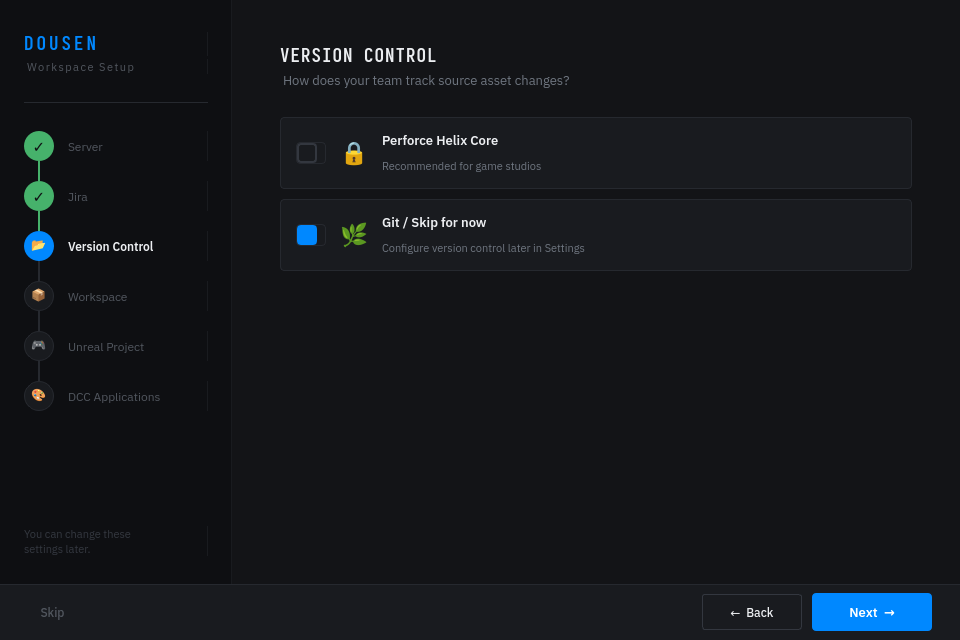
Choosing Git here skips the Workspace page entirely — it's Perforce-only. - Jira gotcha: Test Connection calls Jira directly (
-
Launch DCCs from DousenDesktop. ~1 minute per DCC.
DCC addons auto-connect to the local bridge relay on
127.0.0.1:8766. DousenDesktop launches each DCC with its addon already injected — the artist just confirms each DCC's executable path in Settings → DCC Apps (paths are auto-discovered) and launches from DousenDesktop. See DCC addons.Gotcha: the addon only loads when the DCC is launched from DousenDesktop's apps bar — a desktop shortcut starts the plain application with no Dousen panel at all.
-
(Optional) Add the Unreal Engine plugin. ~5 minutes.
Copy the DousenUE plugin into your project's
Plugins/folder (or use the Install Plugin button in DousenDesktop's Settings → Unreal tab, which does the copy for you), then set the connection details inConfig/BaseDousenUE.ini. Full reference: Unreal Engine.Gotcha: settings go under
[/Script/DousenUE.DousenProjectSettings]inConfig/BaseDousenUE.ini, notDefaultEngine.ini— andProjectIdis a UUID, not a plain number. Naming-convention checks and per-project features stay off entirely until it's set.
Unreal plugin configuration
Under the [/Script/DousenUE.DousenProjectSettings] section of Config/BaseDousenUE.ini, set the following keys so the plugin can reach your server and the local bridge relay.
INI[/Script/DousenUE.DousenProjectSettings]
ServerScheme=http
ServerHost=<server>
BridgeRelayPort=8766
ProjectId=<your-project-id>
Once configured, the plugin polls the desktop relay on port 8766 and auto-reimports assets when an artist publishes from another DCC. No manual export-and-import step is needed.
Verify it works
A single pass through the whole loop, from task to engine, using the pieces just installed:
-
Open a task.
In DousenDesktop's Jira panel, click a task — the issue renders with its description and details. See Jira tasks.
-
Confirm the Perforce connection.
The status bar should read
P4: <stream>orP4: <client> (classic), notP4: not connected. See Perforce. -
Open a changelist for the task and export from a DCC.
Launch a DCC from DousenDesktop and try exporting an asset with a name that breaks your naming conventions — it should be blocked (or warned) before anything publishes, exactly as the validators are configured to. See Asset validation.
-
Publish a correctly named asset.
The changelist that opens in Perforce is keyed to the Jira issue (for example
DOU-142), and the Bridge tab in DousenDesktop should show the export event in its timeline. -
Watch it land in Unreal.
If the Unreal plugin is installed, the asset auto-reimports in the editor without a manual import step, and the tray icon's connected-apps badge includes Unreal. See Unreal Engine.